The Panel at a Glance
Edit
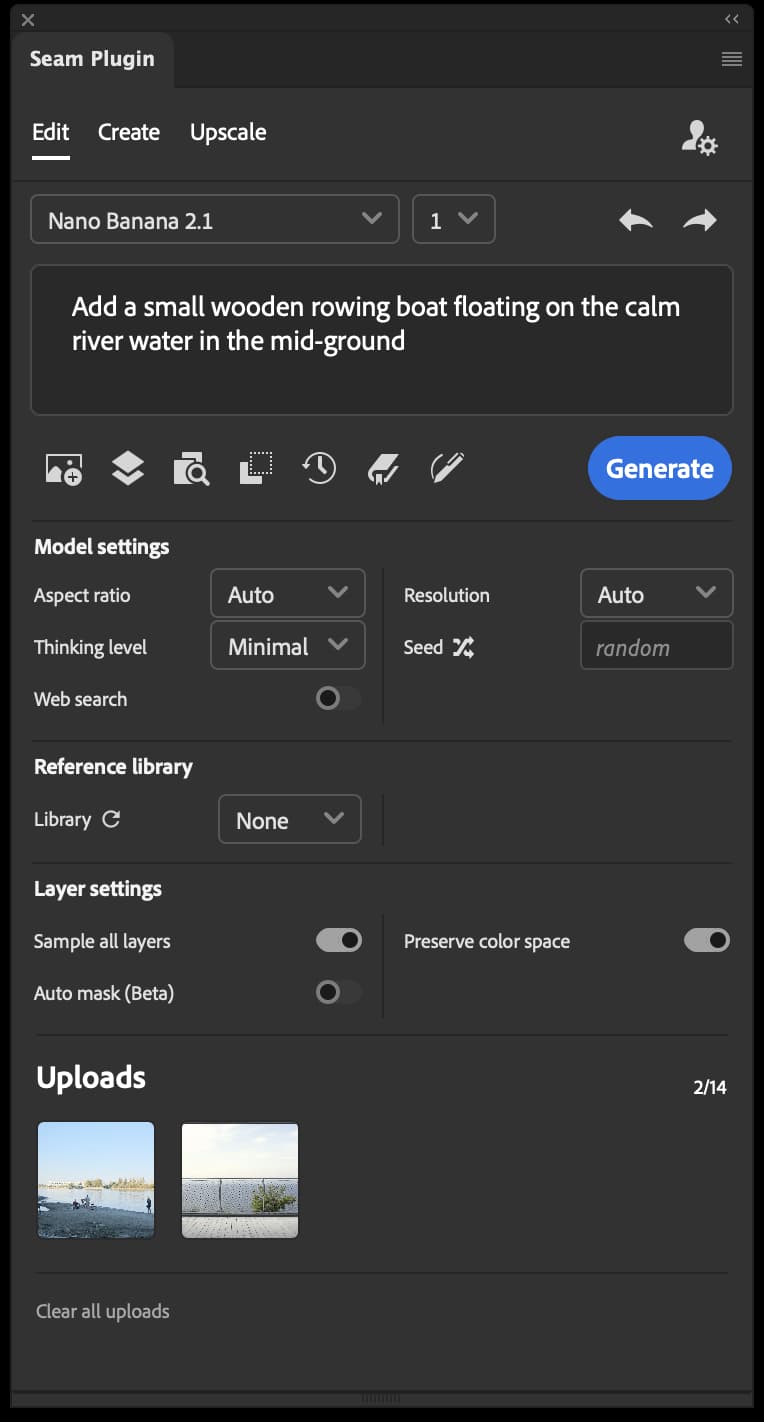
Changes part of an existing image. It is the tab that is open when the panel starts. Edit
At the top sit the model and the number of variations, then the model settings and Uploads, which shows your reference images and how many the model accepts. The arrows next to the text field undo and redo changes to the text.
The icons below the text field, from left to right:
- Upload a reference image from a file.
- Use selected layer as input adds the selected layer to Uploads.
- Preview renders a draft first. Preview & Commit
- Load settings from the selected layer. Layer Provenance
- Prompt history and Prompt library. Prompt Library & History
- Enhance prompt. Prompt Enhance
Create
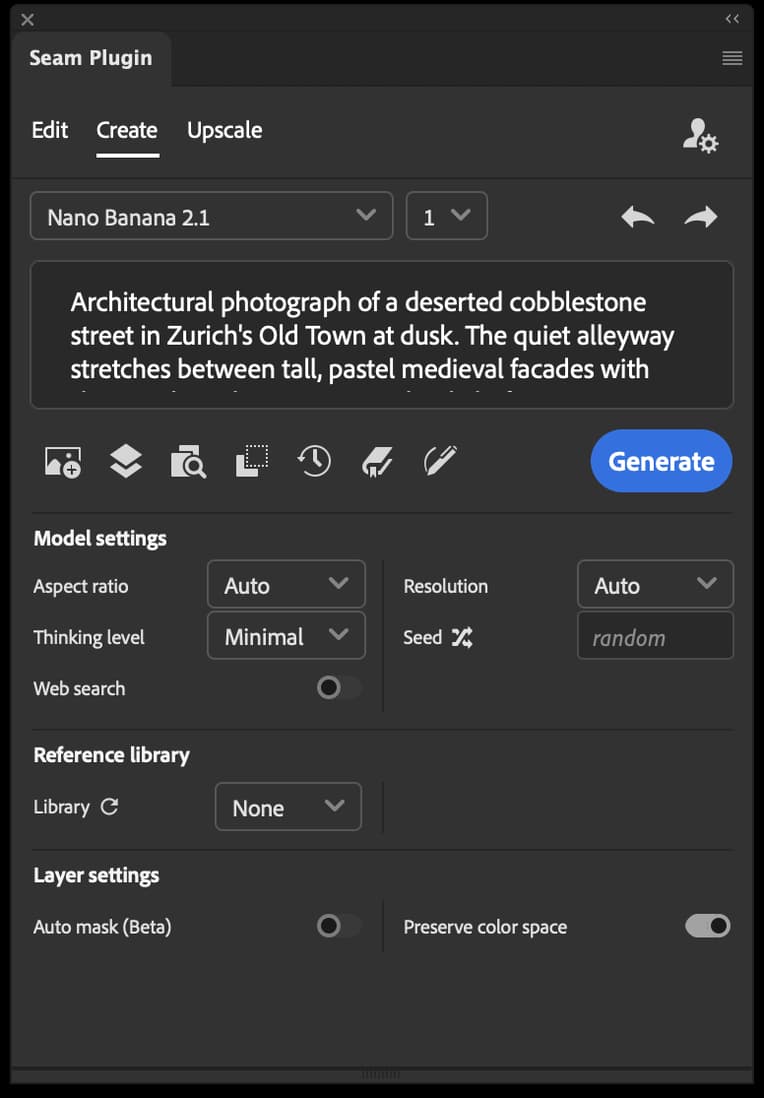
Generates a new image from your description. The layout is the same as in Edit. Create
Upscale
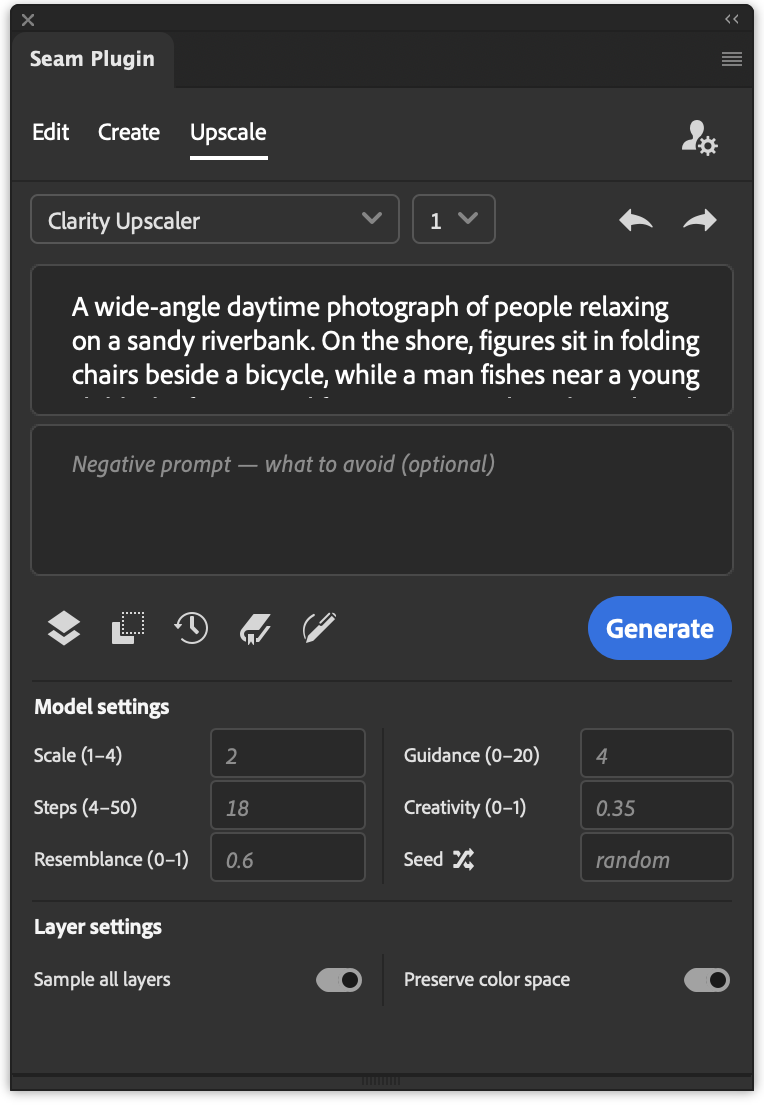
Enlarges the active layer or a selection. Clarity, shown here, also takes a description. Upscale
Preview

With the preview icon on, the main button reads Preview. Preview & Commit
Prompt history
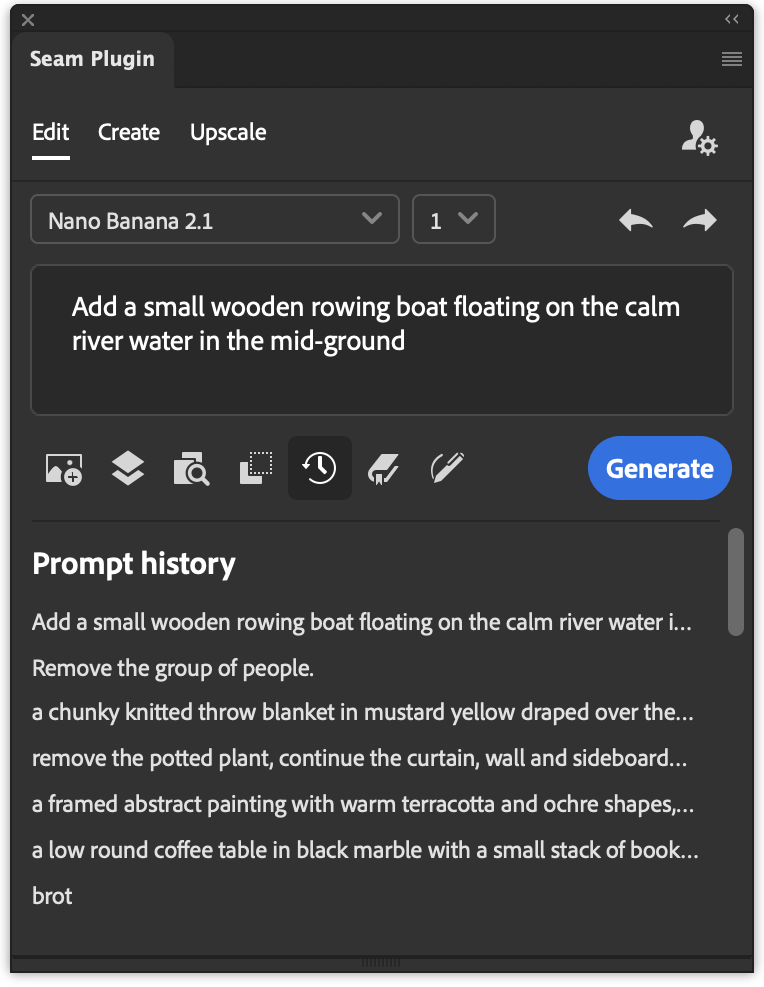
The prompts you sent in this tab. Click an entry to put it back in the text field. Prompt Library & History
Prompt library
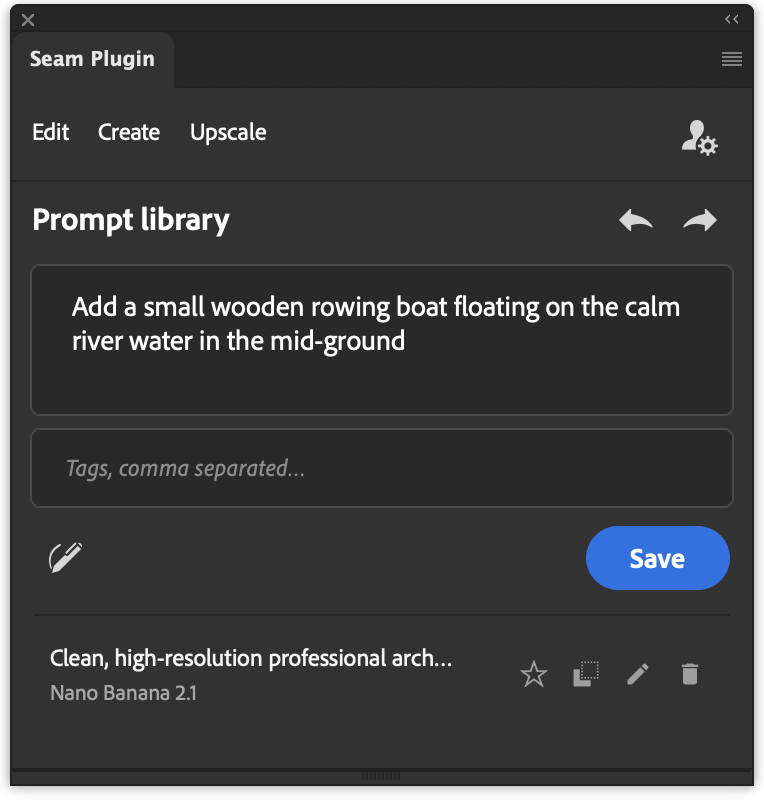
Saved prompts with their settings. The icons mark a preset as a favorite, copy the prompt, edit the preset, or delete it. Prompt Library & History
Reference library

- Library
- Picks one of your reference libraries. None turns it off.
- Refresh
- Reloads the list after you change libraries in the dashboard.
- Details
- Reference Libraries
Layer settings
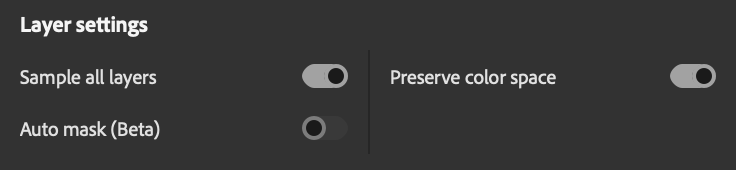
- Sample all layers
- What the model sees. Edit
- Auto mask (Beta)
- Masks the object named in your description. Auto Mask
- Preserve color space
- Keeps the color profile of your document. Output & Placement
Settings
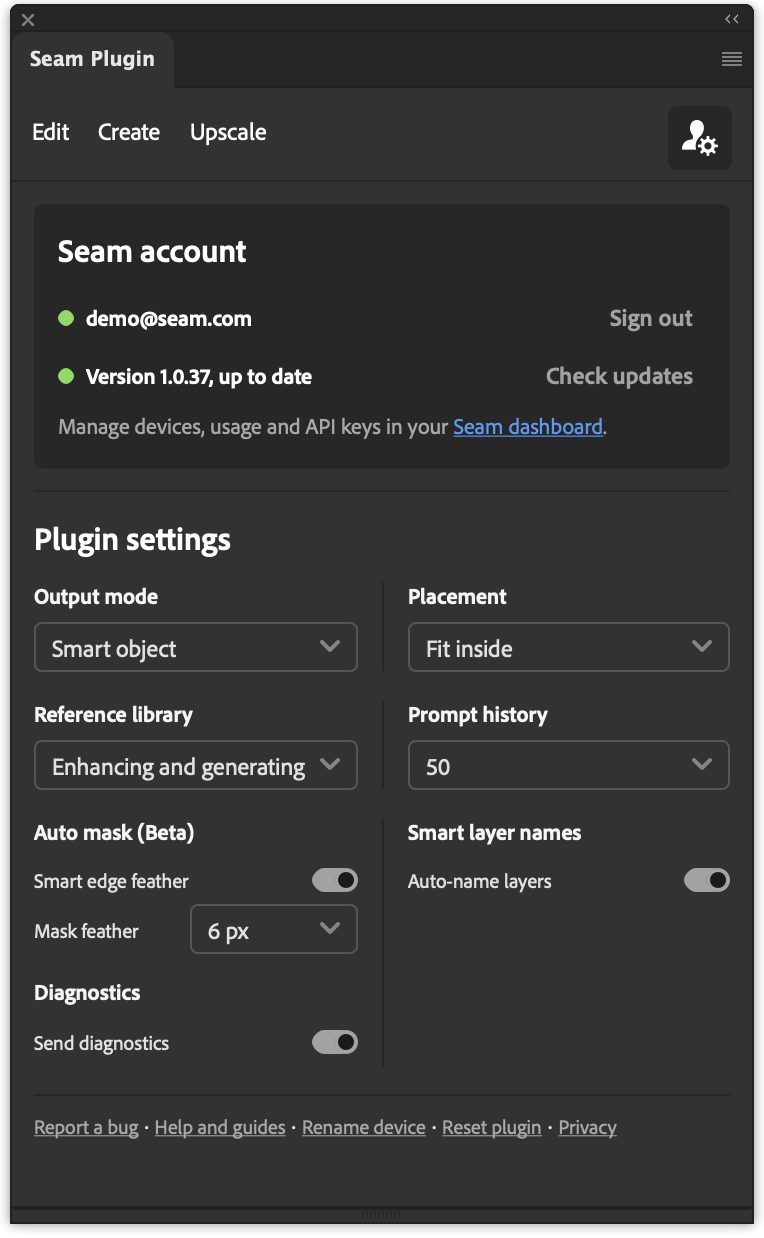
The account button opens your Seam account and the plugin settings. Settings Overview